
Running out of room? Here’s how to clear space, move your games and expand your PS5’s storage without deleting something you actually wanted to keep.
There’s nothing quite like settling down to play a new game and discovering your PS5 needs a small eviction programme before it will install.
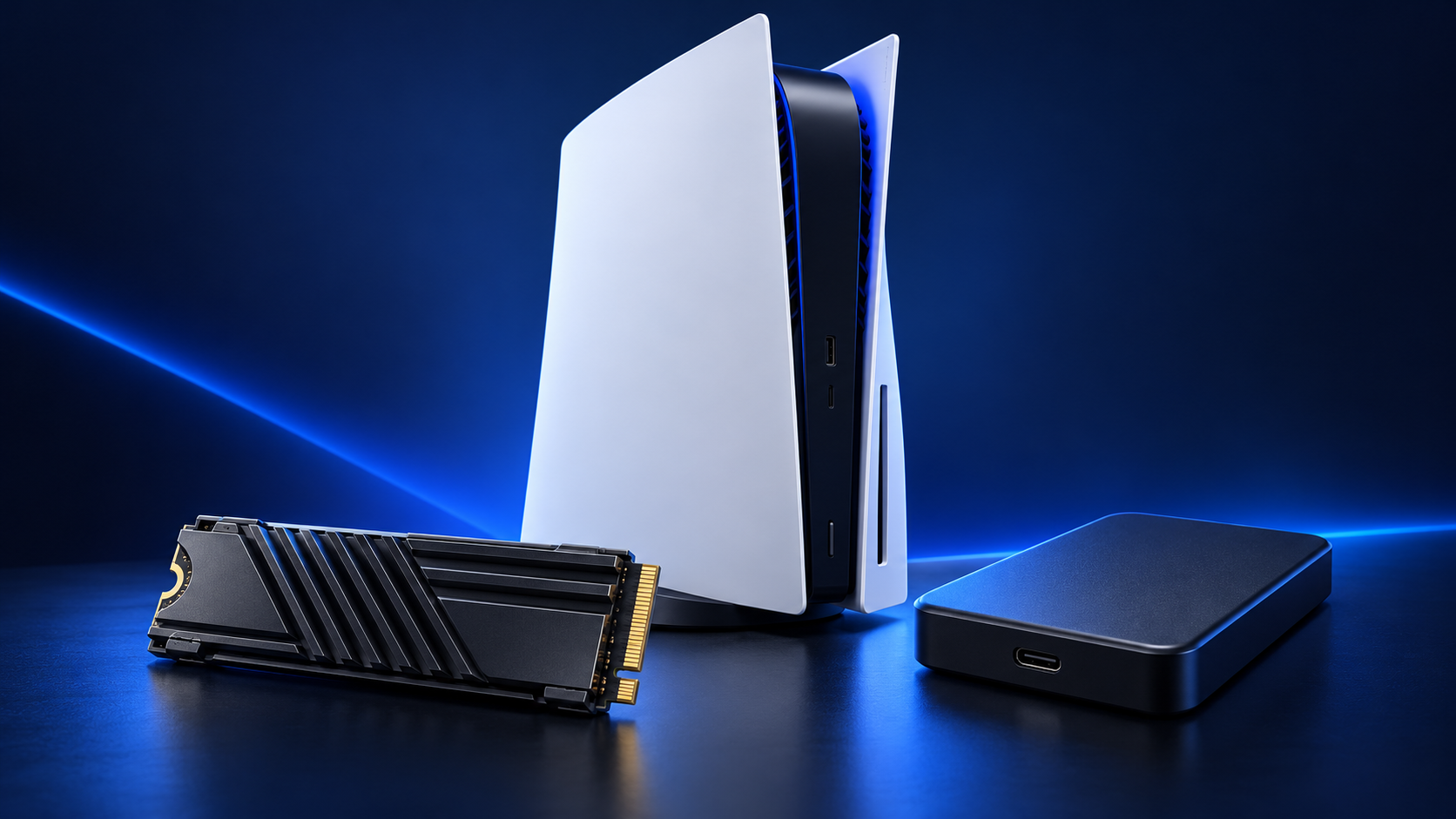
You have three main options: clear out unwanted files, move games to USB storage, or install a compatible M.2 SSD. Which makes sense depends on whether you need room for one download or your entire increasingly unreasonable backlog.
In this article
Check what’s taking up space
Open Settings > Storage to see where your storage has gone.
Under Console Storage > Games and Apps, look for large games you no longer play. If a title offers Customize, you can remove supported components without uninstalling everything. A campaign you’ve finished might be taking up space you could put to better use. Available components vary by game.
Delete games you’re finished with
To uninstall a game:
- Open Settings > Storage > Console Storage > Games and Apps.
- Select the games or apps you want to remove.
- Choose Delete.
Purchased digital games remain available to download from your library. Subscription games depend on your membership and their continued availability.
Game installations and saved progress are separate. Stay out of the saved-data deletion menus unless you specifically intend to remove your saves.
Give your captures a clear-out
Check Media Gallery for screenshots and recordings you no longer need. Keep the excellent boss kill. Consider whether you need every accidental recording of the pause menu.
You can copy captures to a suitable FAT- or exFAT-formatted USB drive before deleting the console copies. This is different from a drive formatted as USB extended storage, which is used for games.
Move games to an external USB drive
USB extended storage is useful for keeping games without downloading them again later.
There’s one crucial distinction:
| Game type | Store on USB extended storage? | Play directly from it? |
|---|---|---|
| PS4 | Yes | Yes |
| PS5 | Yes | No, copy it back to console or compatible M.2 storage first |
That makes USB storage particularly handy for a PS4 collection or PS5 games you’re putting aside. Buying an external SSD doesn’t remove the PS5 playback restriction.
For a new drive:
- Connect a compatible drive directly to a suitable SuperSpeed USB port.
- Open Settings > Storage > USB Extended Storage.
- Select Format as USB Extended Storage.
Formatting erases the drive, so move anything important elsewhere first. Sony specifies SuperSpeed USB 5Gbps or faster and a capacity between 250GB and 8TB.
To move a game, highlight it in Game Library, press Options, choose Move Games and Apps, select the appropriate destination and confirm.
Install an M.2 SSD for more playable storage
If you want more PS5 games installed and ready to launch, a compatible internal M.2 SSD is the more convenient upgrade.
Sony’s requirements include:
- PCIe Gen4 x4 M.2 NVMe support.
- 250GB–8TB capacity.
- A recommended sequential read speed of 5,500MB/s or faster.
- Suitable cooling, such as a heatsink.
- Dimensions that fit the expansion bay, including the cooling hardware.
An M.2 SATA drive won’t work. Check the complete requirements before buying; “M.2” on the box isn’t enough.
Follow Sony’s installation instructions for your PS5 model. The procedure differs between console designs, and the new drive needs formatting before use.
Which option should you choose?
Start with a clear-out if you only need room for your next game. Choose USB storage if you want somewhere to park games or play your PS4 library. Choose a compatible M.2 SSD if you’re tired of deciding which PS5 game gets custody of the remaining space.