

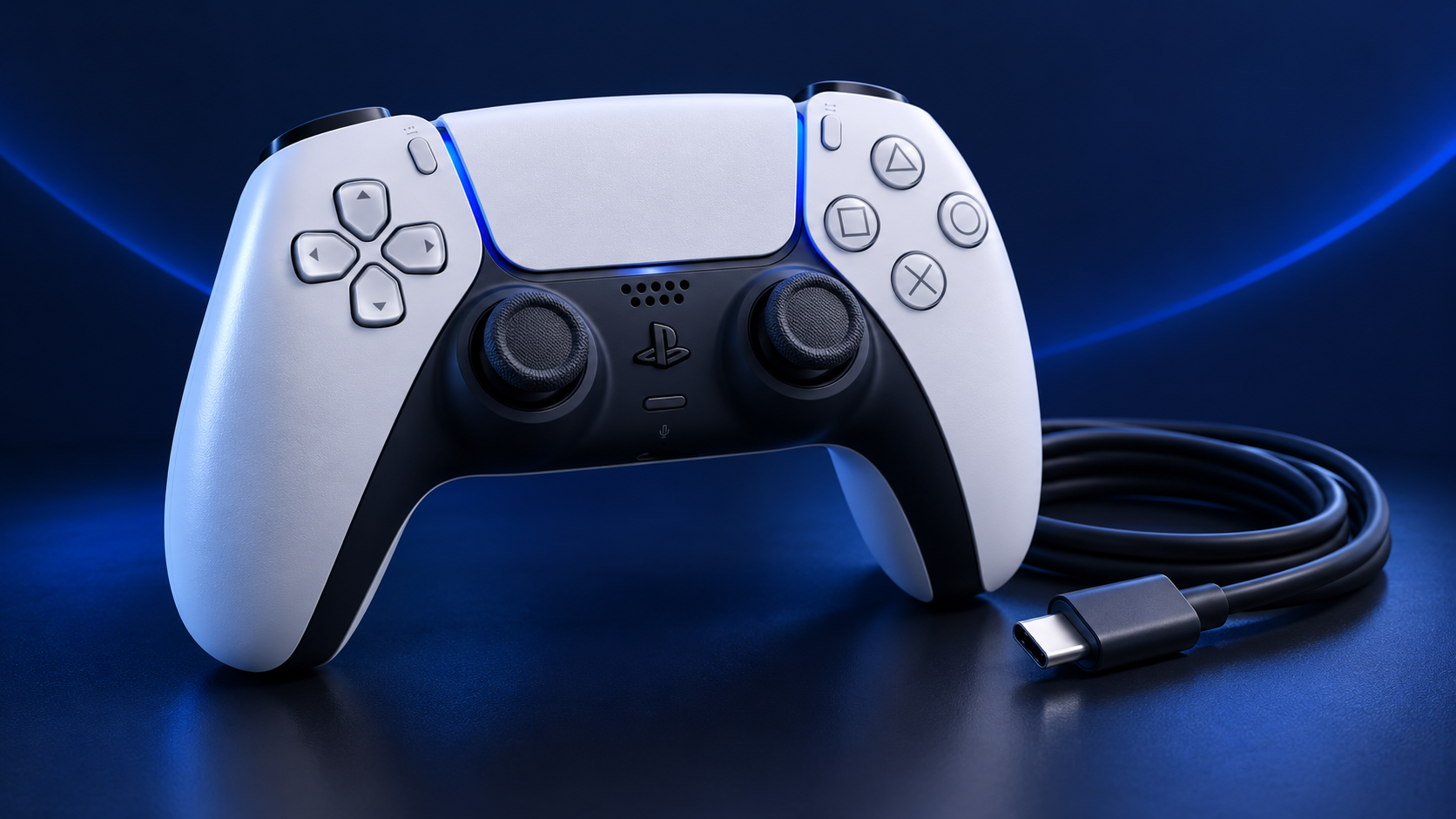
A few DualSense settings can help you spend more time playing and less time looking for a charging cable.
The DualSense does plenty of clever things. Unfortunately, remembering to charge itself isn’t one of them.
You can reduce how much work the controller does between charges, although the trade-off is losing some of its effects. Start with features you won’t miss rather than immediately turning your controller into a very expensive collection of buttons.
This guide covers the standard DualSense. Some DualSense Edge settings are managed separately or through individual profiles.
In this article
Turn down vibration and trigger effects
Open Settings > Accessories > Controller (General).
The two settings to try first are:
- Vibration Intensity: controls the strength of the controller’s vibration.
- Trigger Effect Intensity: controls resistance effects in supported games.
Try a lower setting before switching either off. You might enjoy the extra feedback in a driving game but find it less essential when you’re spending an evening sorting inventory.
Reducing these effects is a reasonable way to reduce the controller’s workload, but the battery saving depends on how heavily each game uses them. There’s no honest universal promise of “three extra hours” here.
Dim the controller indicators
In the same menu, open Brightness of Controller Indicators and choose Dim.
It’s a small adjustment that leaves your controls and gameplay alone. Treat it as a modest saving, rather than a secret battery upgrade Sony somehow forgot to mention.
Lower the controller speaker volume
Under Controller (General), reduce Volume (Speaker for Controller) if you don’t particularly value the extra audio coming from your hands.
This is another setting where the usefulness depends on the game. Turn it down, play for a while and see whether you miss it.
Switch the controller off during longer breaks
If you’re leaving your PS5 running while you do something else:
- Press the PS button.
- Open Accessories in the control centre.
- Select your controller and choose Turn Off.
You can also look under Settings > System > Power Saving > Set Time Until Controllers Turn Off and select a short inactivity period.
Neither approach helps while you’re actively playing, but both stop the controller wasting charge while you’ve wandered off to make dinner.
Make sure it actually charges in rest mode
This won’t extend a single charge, but it prevents the familiar disappointment of plugging in overnight and returning to an almost-empty controller.
- Open Settings > System > Power Saving.
- Select Features Available in Rest Mode.
- Open Supply Power to USB Ports.
- Choose 3 Hours or Always.
Some PS5 models also offer Adaptive charging. Use the supported port and cable specified for your console.
Connect the controller before leaving the console in rest mode. Its light bar slowly pulses orange while charging and switches off when charging finishes.
Check charging before blaming the battery
Press the PS button, then open Accessories to check the battery indicator. An animated battery icon shows charging; three bars indicate a full charge.
If it isn’t charging properly, try another console USB port and a suitable replacement cable. Keep the controller’s device software updated through Settings > Accessories > Controller (General) > DualSense Wireless Controller Device Software, too—although an update isn’t a guaranteed battery-life fix.
Keep the features you enjoy
Our suggested starting point is dim indicators, a quieter speaker and lower vibration and trigger intensity.
If those effects are a big part of why you like the DualSense, keep them. Having a cable within reach is a perfectly respectable solution. You don’t have to strip out every enjoyable feature to win an argument with a battery icon.